

Getting paid should be the easy part. Paythread lets you offer multiple payment options on every invoice so your clients can pay however works best for them. The more options you provide, the faster you typically get paid.
Supported Payment Methods
Paythread supports six types of payment methods:
- Credit Card (Stripe) — Accept credit and debit cards online. When you attach this to an invoice and send it via email, a "Pay with Credit Card" button is automatically included. Clients click it and pay through Stripe's secure checkout. Requires Stripe Connect — the option is disabled until you connect your Stripe account in Settings.
- Bank Transfer (ACH/Wire) — Provide your bank details so clients can send payment directly. This is common for larger invoices where card processing fees would add up.
- Zelle — Add your Zelle email address or phone number. Zelle payments transfer directly between bank accounts with no fees.
- PayPal — Add your PayPal email or payment link. Many clients prefer PayPal for its buyer protection and familiarity.
- Venmo — Include your Venmo handle for clients who prefer mobile payments. This works well for smaller invoices and informal client relationships.
- Custom Instructions — A free-text field for anything else. Use this for cryptocurrency wallets, international wire details, or payment platforms specific to your region.
Adding Payment Methods
Navigate to Payment Methods from your profile menu in the top-right corner to configure your options. Each method has its own setup flow:
For credit card payments, first connect your Stripe account through the Accept Payments section in Settings. Once connected, the "Credit Card (Stripe)" option becomes available. Add it as a payment method, then attach it to invoices — the checkout link is generated automatically when you send the email.
For bank transfers, Zelle, PayPal, and Venmo, you'll enter your account details (routing numbers, email addresses, phone numbers, or handles). Paythread stores these securely and includes them on your invoices and PDFs.
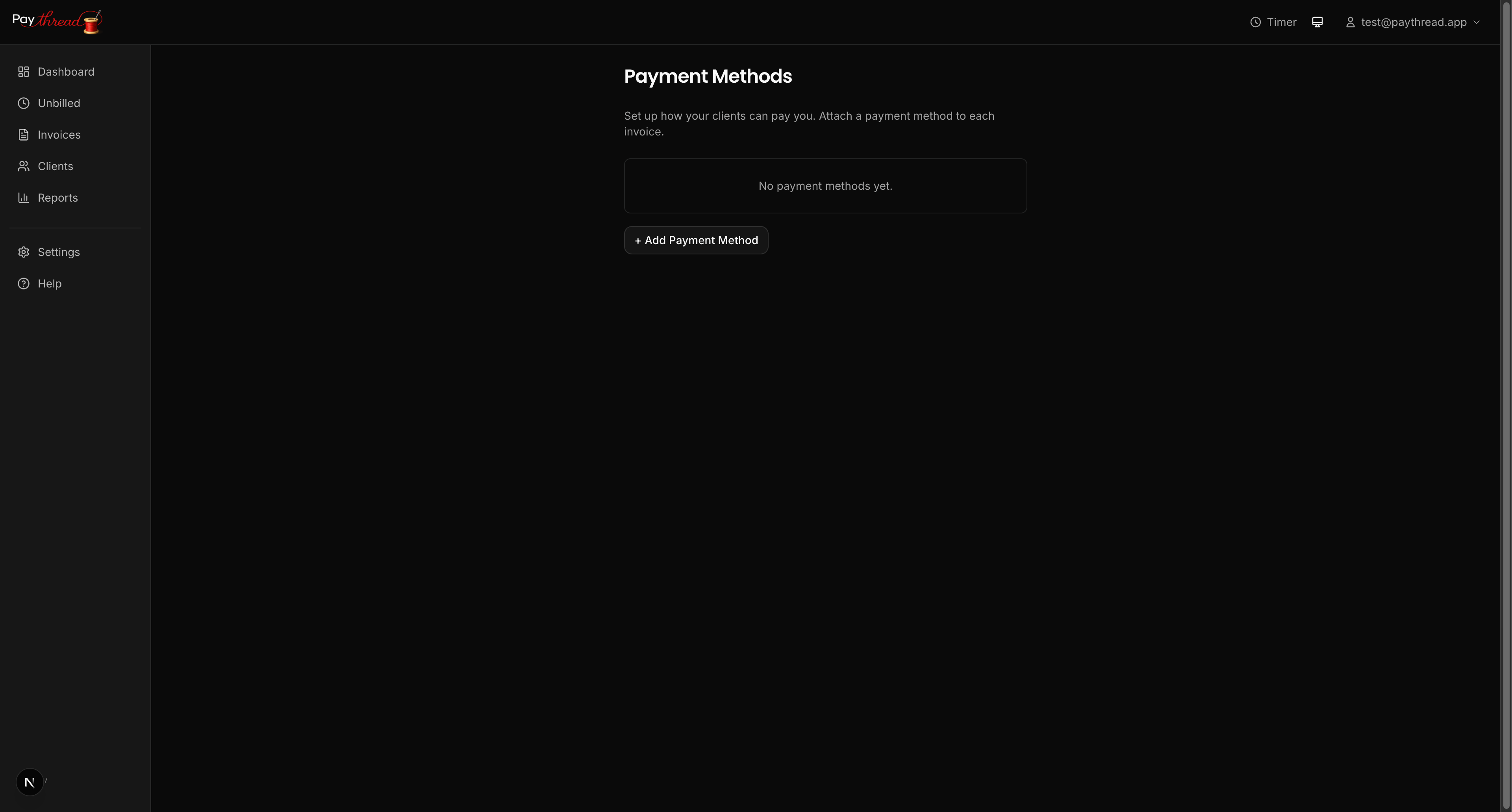
Custom instructions give you a text field where you can write whatever payment details your client needs. This is especially useful for international freelancers who use region-specific payment platforms.
How Payment Methods Appear on Invoices
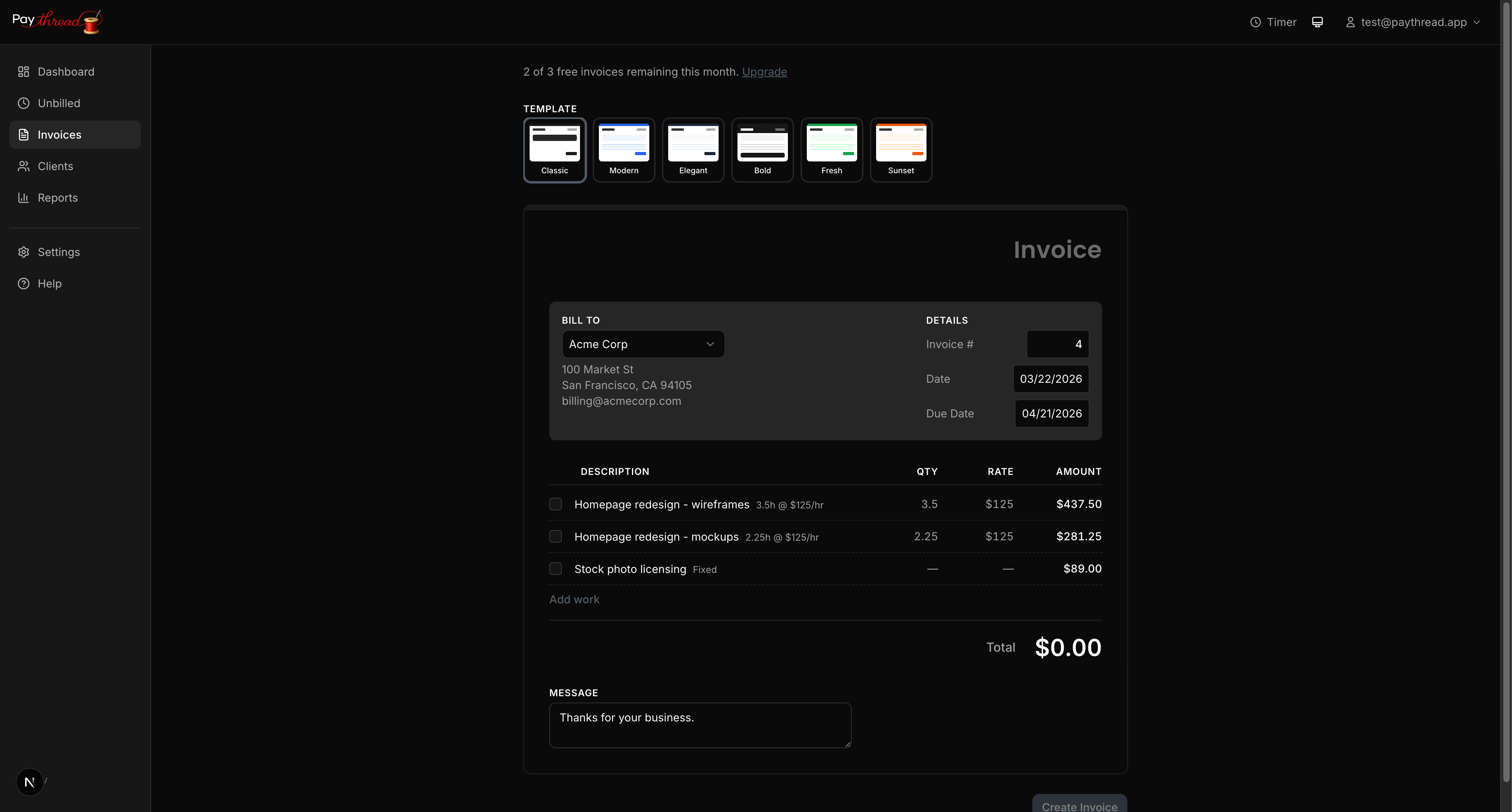
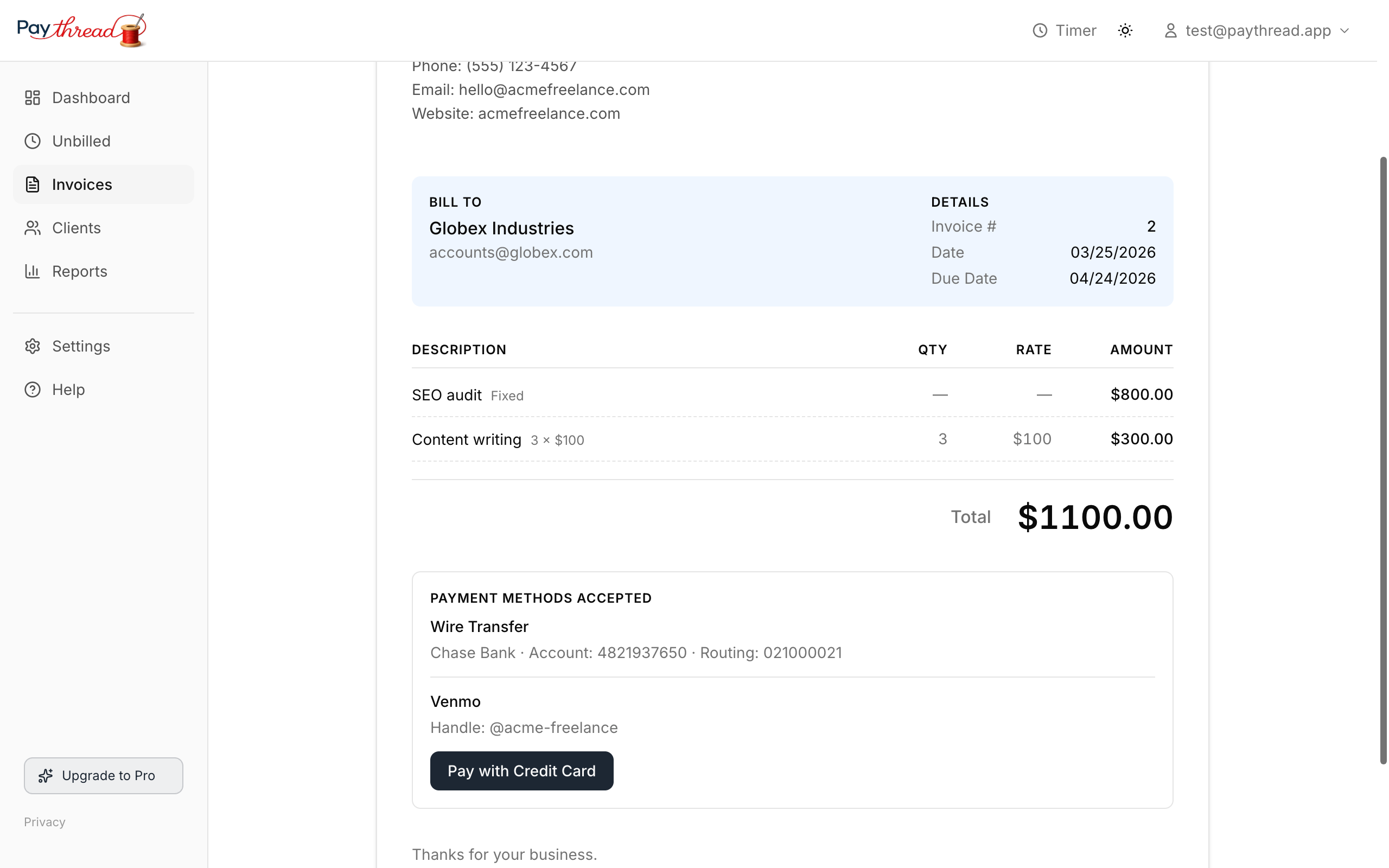
When you create an invoice, you choose which payment methods to include. You don't have to show every method on every invoice. For example, you might offer Stripe and bank transfer to a corporate client, but Venmo and PayPal to a smaller client.
Your selected payment methods appear in a dedicated section on the invoice PDF. When you send with a Stripe payment link, the email includes a "Pay Now" button. Other methods display as formatted text with your account details on the PDF.
Choosing the Right Mix
A few practical tips for setting up payment methods:
- Always offer at least two options. If one method doesn't work for a client, they have a backup. This reduces back-and-forth and speeds up payment.
- Lead with Stripe for speed. Card payments clear quickly, and the convenience of a one-click payment link means clients are more likely to pay immediately.
- Use bank transfers for large invoices. Credit card processing fees are a percentage of the transaction. For invoices over a few thousand dollars, offering a bank transfer saves both you and your client money.
- Match your client's preferences. If a client has paid via PayPal before, keep offering it. Consistency reduces friction.
Keeping Methods Updated
Review your payment methods periodically. If you close a bank account, change your PayPal email, or disconnect a Stripe account, update your settings right away. Sending an invoice with outdated payment details creates confusion and delays.
What's Next?
With your payment methods configured, you're ready to put everything together. See Weekly Invoicing Workflow for Freelancers for a practical routine, or jump to From Timer to Paid: The Complete Payment Flow to see how payment methods fit into the full lifecycle.