
Never Miss a Billable Minute
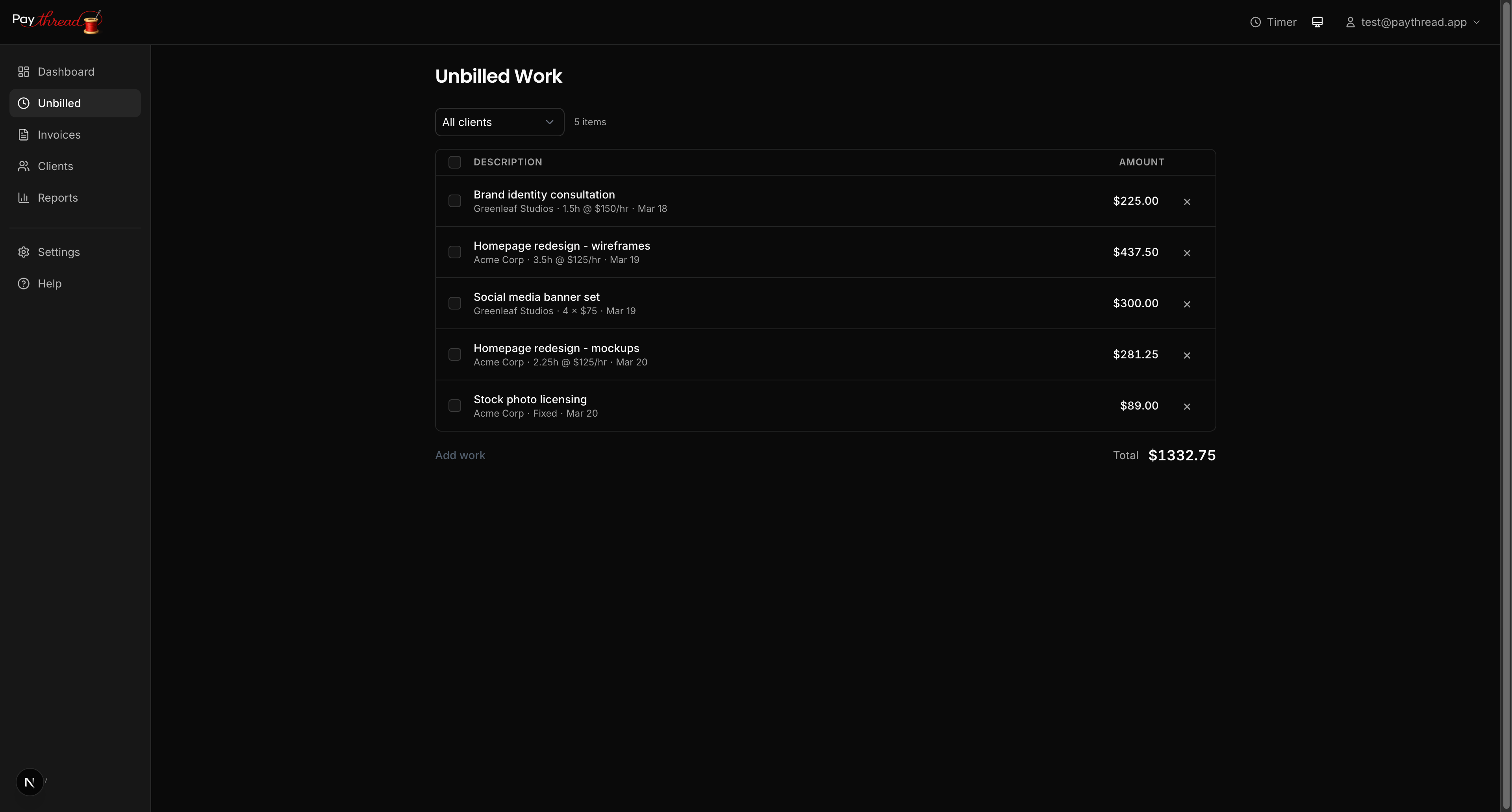
Freelancers lose money when work goes untracked. Paythread gives you three distinct work item types so you can capture every kind of billable work — whether it's an hour of consulting, a flat-fee deliverable, or a batch of repeatable tasks.
1. Timer: Track Time as You Work
The timer is your go-to for hourly work. Click play, do your thing, click stop. Paythread calculates the duration and multiplies it by your hourly rate (set per client or using your default rate).
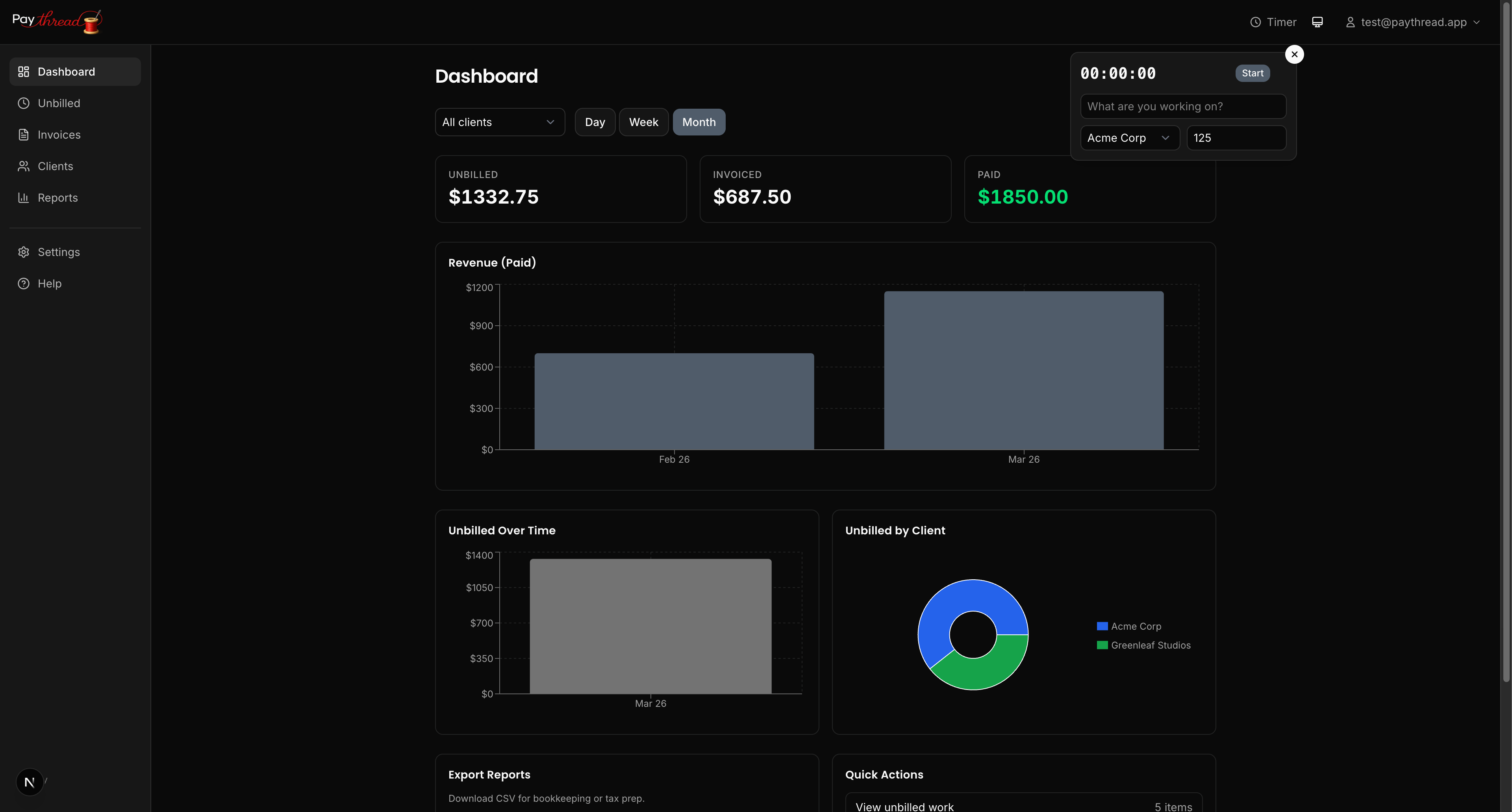
When to use it: Client calls, design sessions, development sprints, writing time — anything billed by the hour.
Tips for getting the most from the timer:
- Add a description before you start so you don't forget what you were working on when you stop an hour later.
- Select the client first to make sure the correct hourly rate applies.
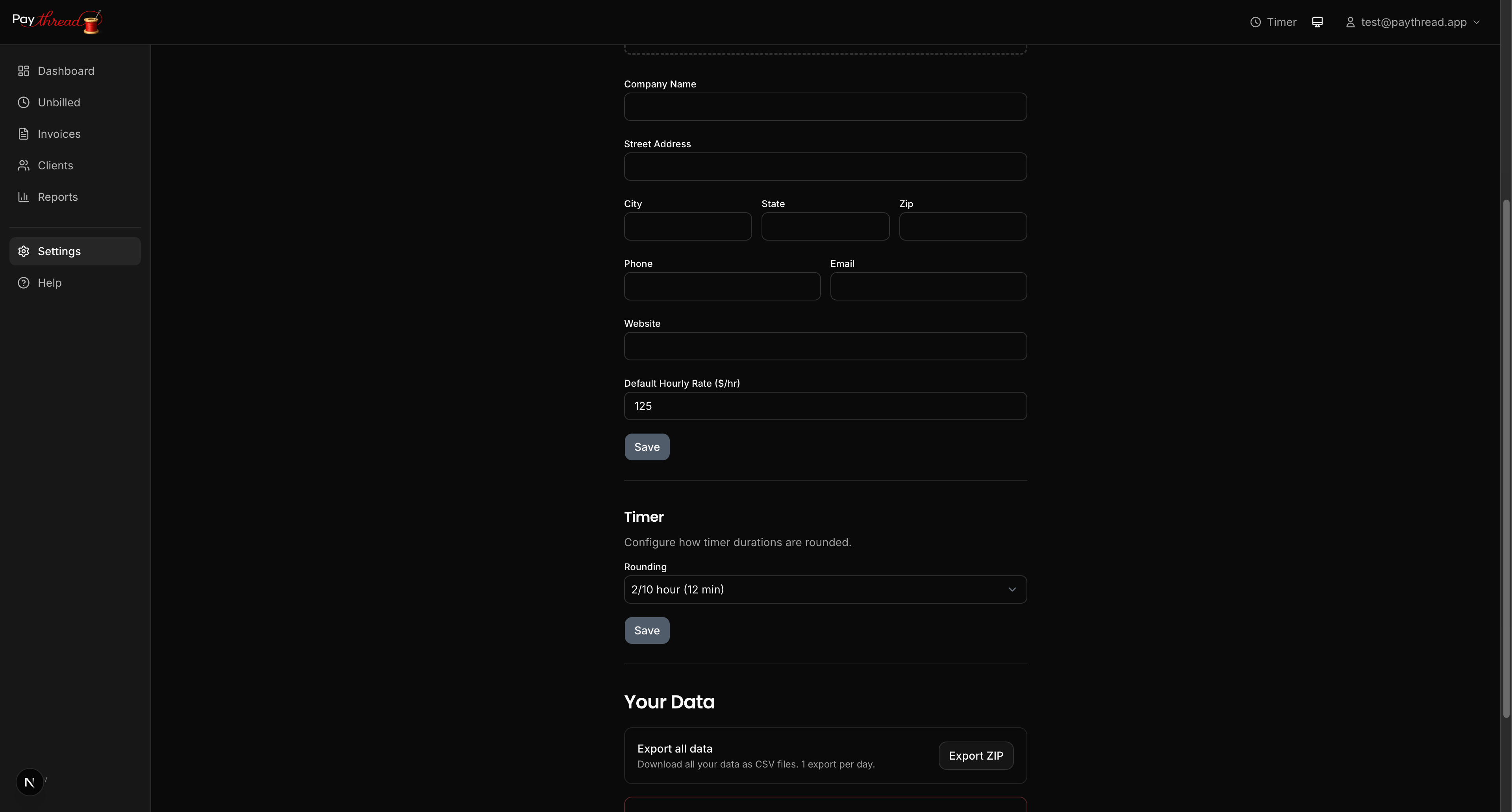
- Use rounding settings to keep your invoices clean. You can configure rounding in Settings — options include rounding to the nearest 1, 5, or 15 minutes. For example, with 15-minute rounding, a 22-minute session becomes 30 minutes. This is standard practice in consulting and saves you from invoicing for oddly specific durations like "0.37 hours."
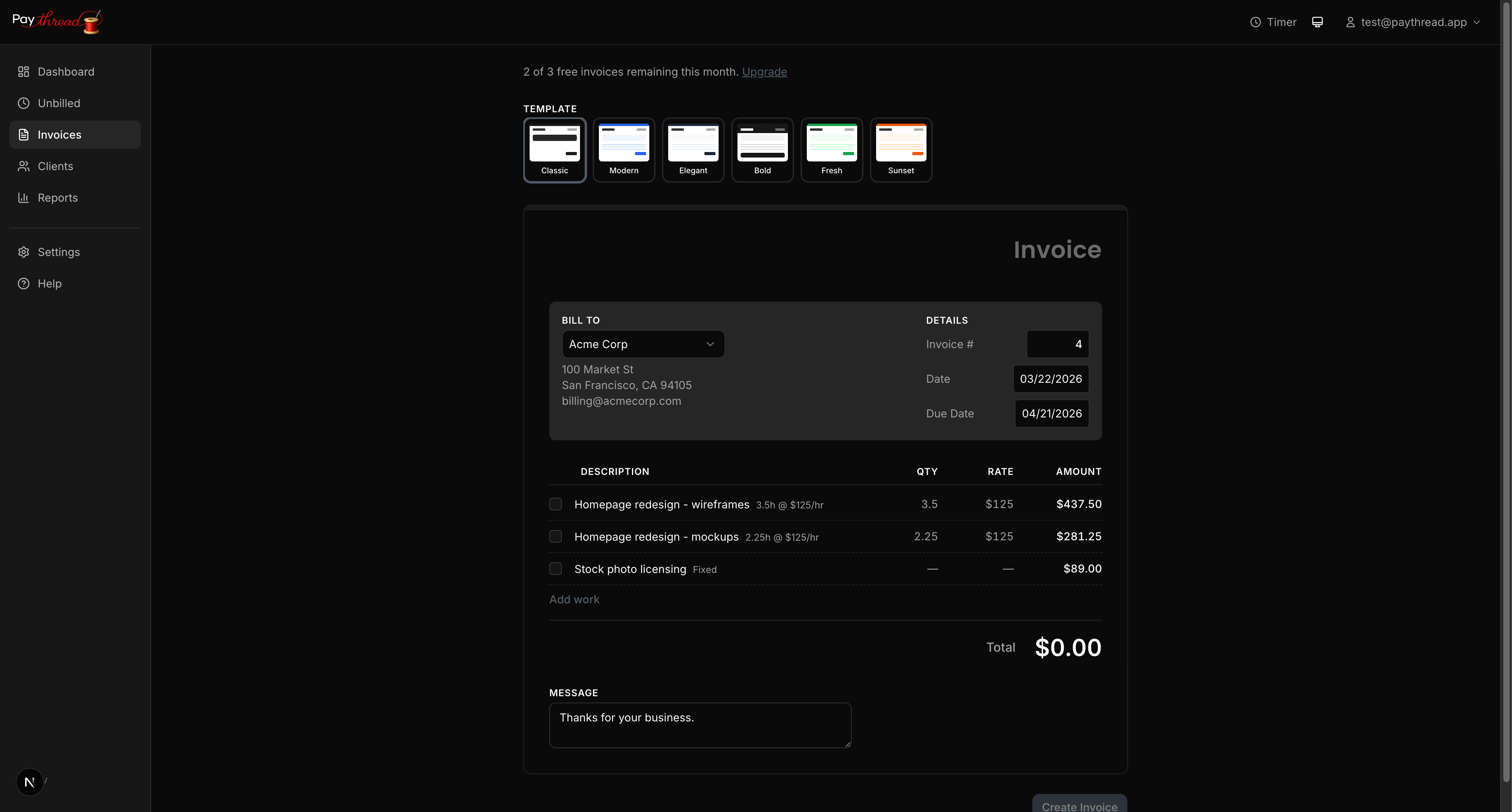
You can also edit a timer entry after the fact. Made a mistake or forgot to stop the timer? Just update the duration in the unbilled queue.
2. Fixed Rate: Flat-Fee Line Items
Not everything is billed by the hour. Fixed rate items let you add a work item with a straight dollar amount — no time tracking involved.
When to use it: Project milestones ("Website design — Phase 1: $2,500"), deliverables ("Brand guidelines document: $800"), reimbursable expenses ("Stock photography: $45"), or any flat-fee work.
To create a fixed rate item, go to the unbilled queue, click Add Work Item, and choose the fixed rate type. Enter a description, assign it to a client, set the amount, and save. It drops into the unbilled queue alongside your timer entries, ready to be invoiced.
3. Multiplier: Quantity Times Rate
Multiplier items are for when you have a repeatable unit of work at a set price. You define a quantity and a per-unit rate, and Paythread calculates the total.
When to use it: "5 blog posts at $200 each," "3 revision rounds at $75 each," "12 social media graphics at $50 each." Anything where the same type of work repeats at a consistent rate.
The line item on the invoice shows the breakdown (quantity, unit rate, and total), which gives your client clear visibility into what they're paying for.
Mixing and Matching
Most freelancers use a combination of all three types. A typical month might include:
- Timer entries for ongoing client meetings and development work
- A fixed rate item for a project milestone delivery
- A multiplier item for a batch of content pieces
All three types land in the same unbilled queue and can be combined on a single invoice. Your client sees a clear, itemized breakdown regardless of how each line item was created.
What's Next?
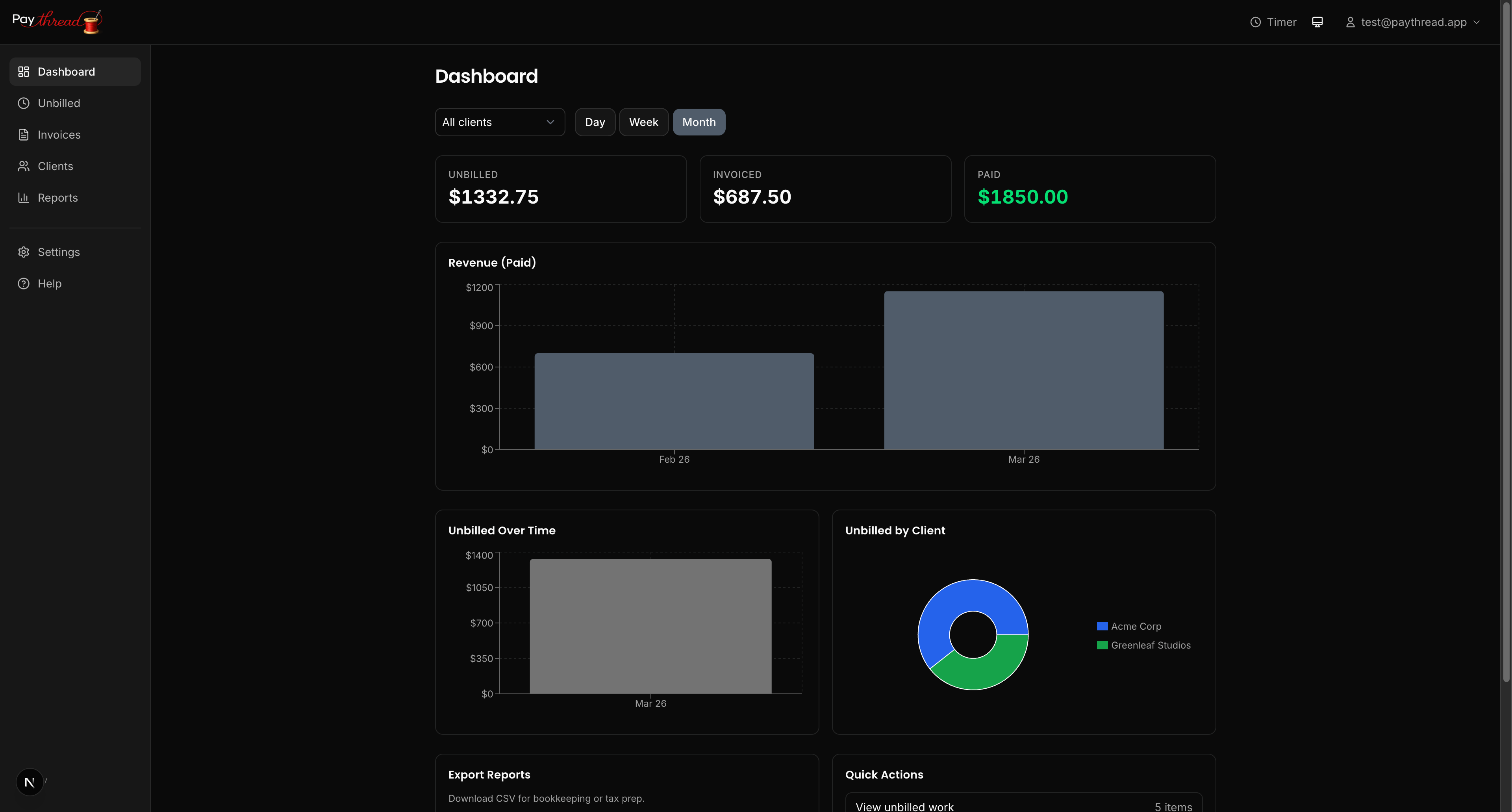
Now that you know how to track work, learn how to manage everything before it hits an invoice. Read Understanding the Unbilled Queue for tips on filtering, editing, and organizing your work items. Ready to send an invoice right now? Jump to Your First Invoice in 5 Minutes.