

Why Connect Stripe?
Getting paid faster is the whole point. When you connect Stripe to Paythread, every invoice you send includes a Pay Now button that lets your client pay with a credit card right from the invoice. No more chasing checks, waiting on wire transfers, or sending awkward follow-up emails. Clients click, pay, and you get notified instantly.
How It Works
Paythread uses Stripe Connect to link your Stripe account to your Paythread account. This means:
- Payments go directly to your Stripe account — Paythread never holds your money.
- You get Stripe's full dashboard for tracking payouts, refunds, and transaction history.
- Your clients' payment information is handled securely by Stripe. Card numbers never touch Paythread's servers.
If you don't already have a Stripe account, you'll create one during the connection process. It takes about five minutes.
Connecting Your Stripe Account
Navigate to Settings from the sidebar and find the Payments section.
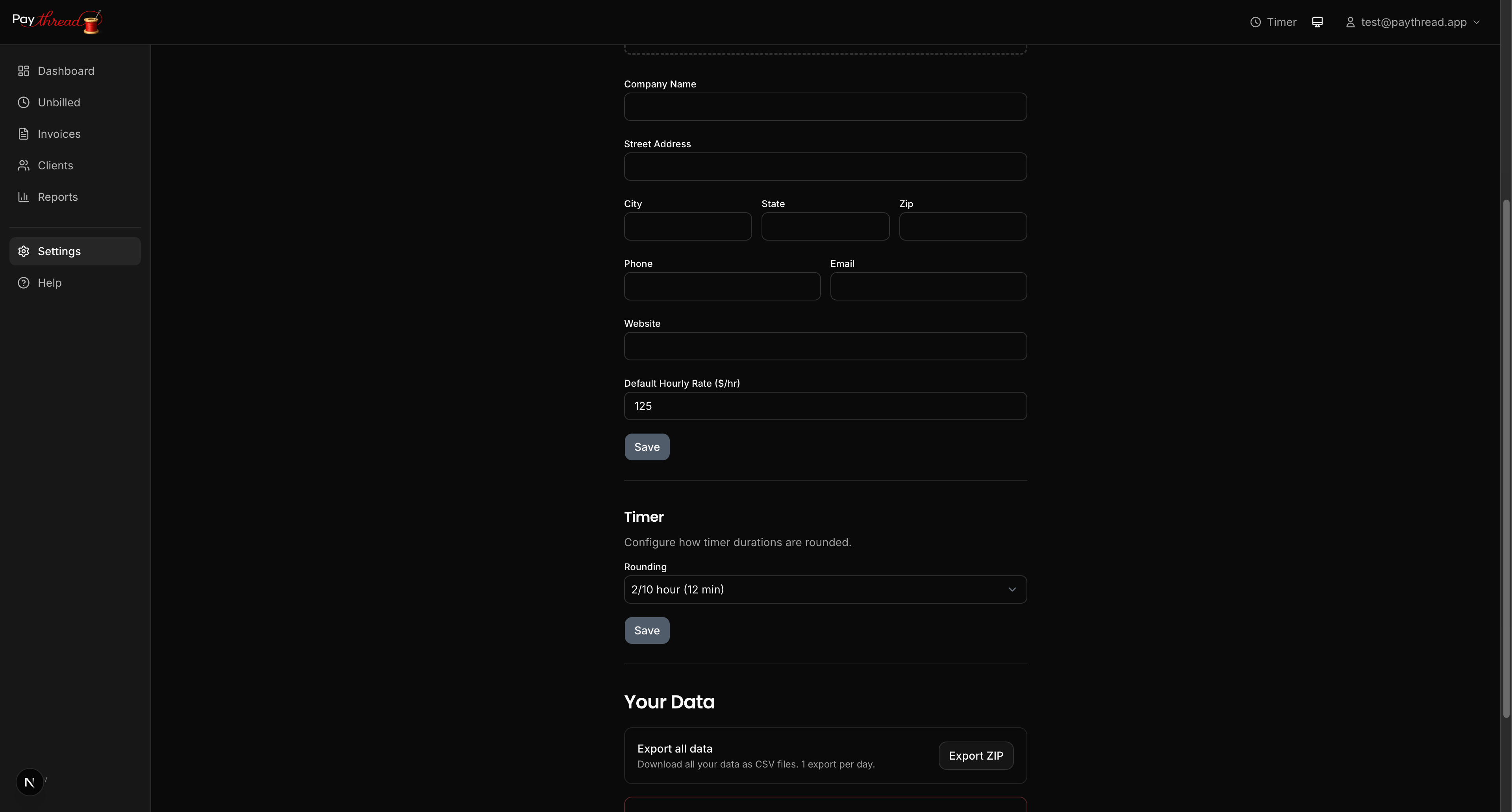
Click Connect with Stripe. You'll be redirected to Stripe's onboarding flow, where you'll:
- Sign in or create a Stripe account — If you already have one, just sign in. Otherwise, Stripe walks you through creating one.
- Verify your identity — Stripe requires basic identity verification for fraud prevention. This typically involves your legal name, date of birth, and the last four digits of your SSN (or equivalent in your country).
- Add your bank account — This is where Stripe deposits your payouts. You'll need your routing and account numbers.
- Review and submit — Confirm your details and you're done.
Once complete, you'll be redirected back to Paythread and your Settings page will show your Stripe account as connected.
What Your Clients See
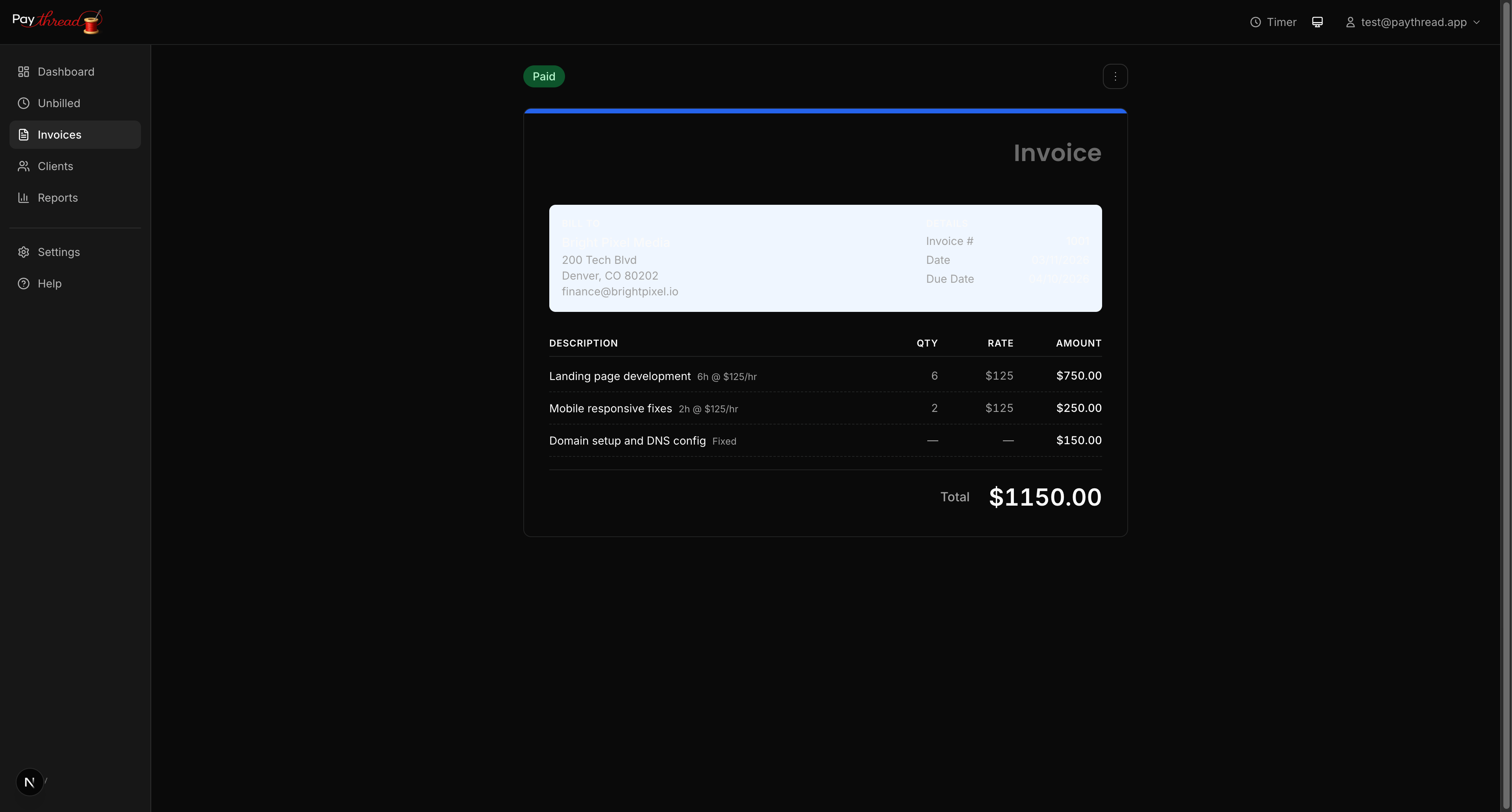
When you send an invoice with Stripe connected, your client's invoice page includes a prominent Pay Now button. Clicking it opens a secure Stripe checkout where they can enter their card details and pay immediately.
After payment, both you and your client receive email confirmations. The invoice status in Paythread updates to Paid automatically — no manual bookkeeping required.
How Money Flows
Here's the path from client payment to your bank account:
- Client pays via the invoice link.
- Stripe processes the payment and applies their standard processing fee (typically 2.9% + 30 cents per transaction).
- Funds arrive in your Stripe account balance, usually within seconds.
- Stripe pays out to your bank account on your configured payout schedule (daily or weekly, depending on your Stripe settings).
Paythread does not add any additional fees on top of Stripe's processing costs.
Disconnecting Stripe
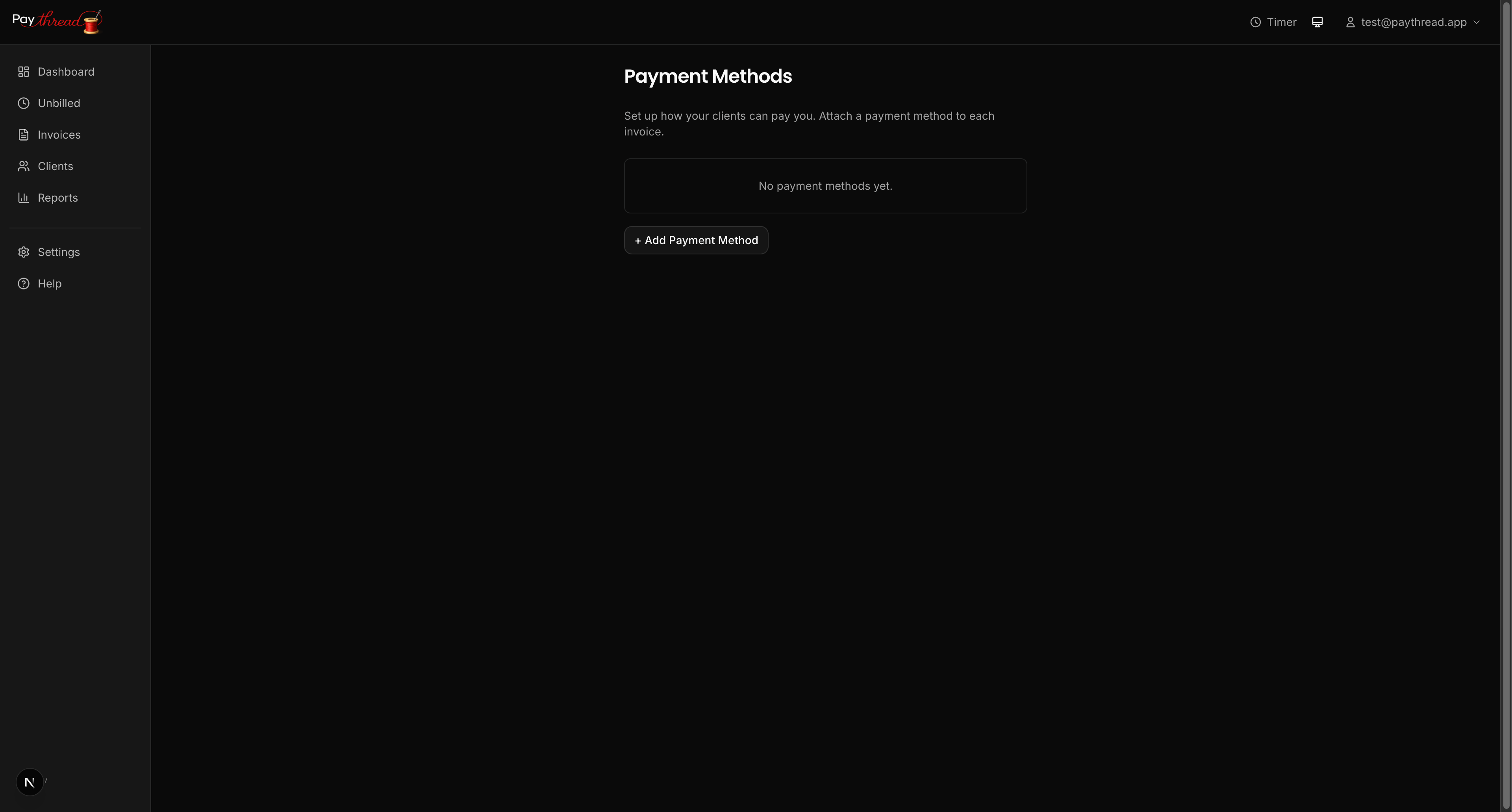
If you ever need to disconnect your Stripe account, you can do so from the same Settings page. Disconnecting does not affect invoices that have already been paid. Future invoices will simply not show the online payment option until you reconnect.
Can I Still Send Invoices Without Stripe?
Absolutely. Stripe is entirely optional. Without it, your invoices are still fully functional — clients can view them online, and you can manually mark them as paid when you receive payment through your preferred method (check, bank transfer, PayPal, etc.).

What's Next?
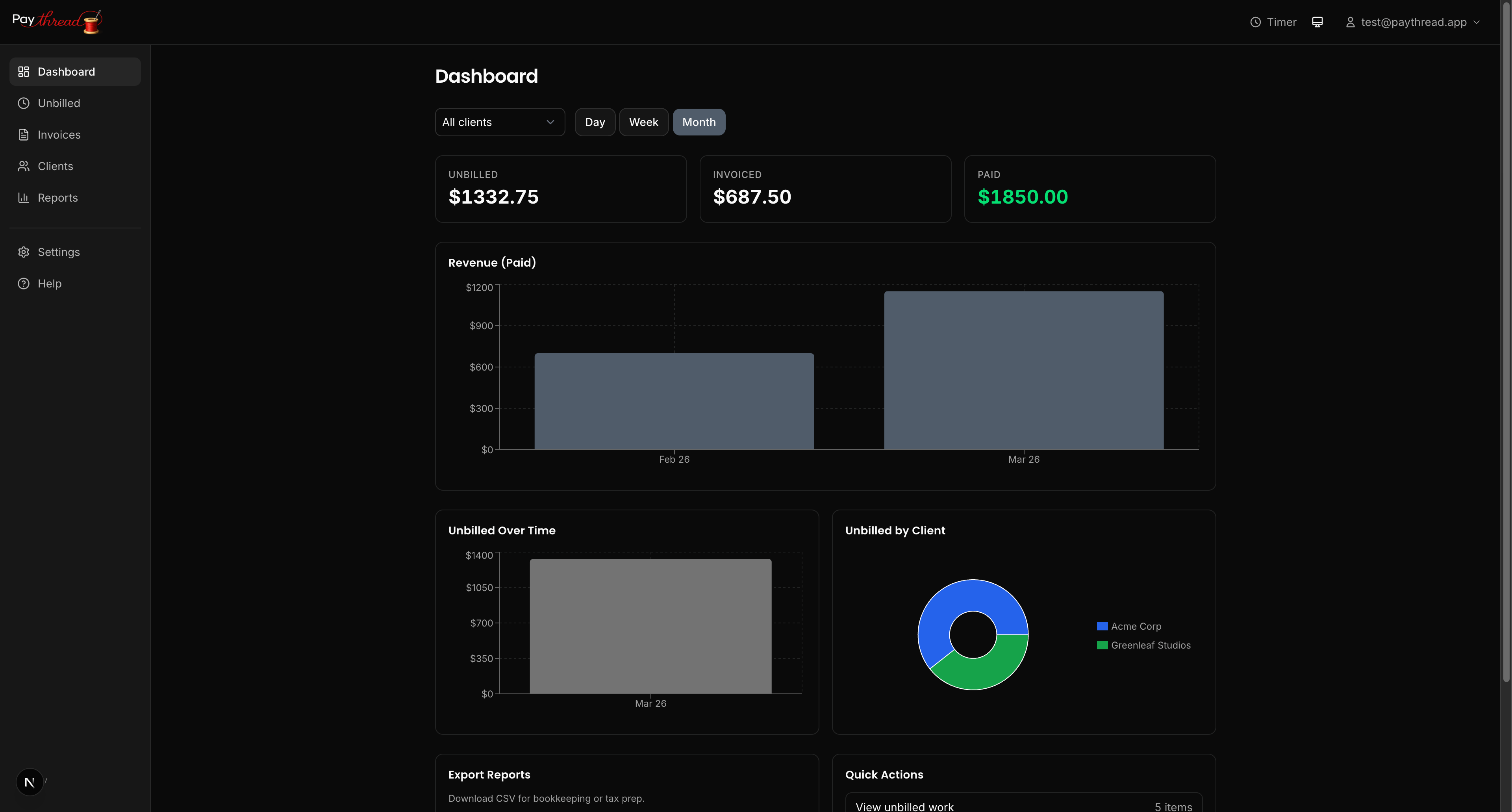
Now that payments are set up, make sure you're capturing all your billable work efficiently. Read 3 Ways to Track Billable Work to learn about timers, fixed rate items, and multiplier entries. Or if you haven't sent an invoice yet, start with Your First Invoice in 5 Minutes.